In this article
Your voiceover carries the entire video. No face, no cutaways to a talking head. Just the voice and whatever plays under it.
You have two routes: record your own voice, or generate one with AI. Both work. This guide covers the full workflow for either path, from script to synced final track.
What You’ll Need
- A finished script. Voiceover without a script turns into filler and restarts.
- A phone, laptop mic, or a USB microphone. Any of the three works for your first ten videos.
- A small room with soft surfaces. A closet, a bedroom with curtains, or a couch corner.
- Headphones. For checking takes and catching room echo before you commit.
- An editor that accepts an audio track. CapCut, Descript, DaVinci Resolve, or anything similar.
- Optional: an AI voice account. ElevenLabs or Murf if you are skipping recording entirely.
Step 1: Decide Between Recording and an AI Voice
This decision shapes every step after it, so make it first.
Record your own voice when: you want a consistent brand sound across every video, you do not mind being heard (even if never seen), and you can find fifteen quiet minutes per video.
Use an AI voice when: you want to publish before you are comfortable with your own voice, you need narration in a language or accent you do not speak, or your channel produces faster than you can personally record.
Neither choice is permanent. Many faceless creators start on AI voice to ship their first five videos, then switch to recording once the channel is live and the production habit is set. Others do the opposite: they record their own voice for months, then move specific videos to AI narration when a script needs a language or accent they cannot deliver themselves. The video production planning worksheet walks through this decision alongside your first script and shot plan if you are still deciding.
Viewers rarely abandon a video because the narration is AI-generated. They abandon it because the pacing is flat, the audio is too quiet, or the voice does not match the topic. Whichever route you pick, the next six steps matter more than the decision itself.
Step 2: Write the Script for the Ear, Not the Eye
A script that reads well on the page often sounds stiff out loud. Voiceover scripts follow different rules than blog copy.
Keep it simple:
- One idea per line. Each line becomes one beat of footage later.
- Short sentences. Long sentences force a narrator to run out of breath mid-thought.
- Read it out loud before you record anything. If you stumble on a line twice, rewrite it.
- Mark your pauses. A slash or a blank line where you want a breath keeps pacing consistent across takes.
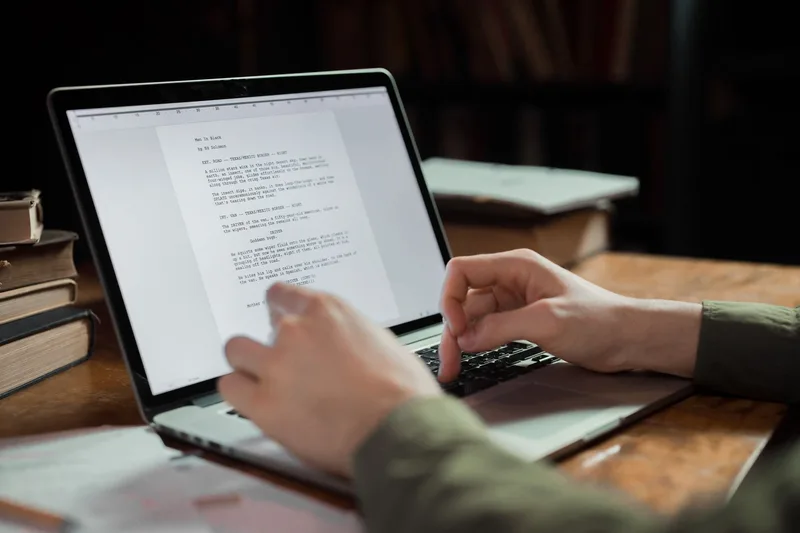
A four-line opener for a finance explainer might read:
- “Most savings accounts lose to inflation every year.”
- “That means the same dollars buy less next year.”
- “Banks will not tell you this.”
- “Here is where people put cash instead.”
Four lines, four cuts, four beats of footage. This mapping matters in Step 7 whether you record it yourself or hand it to an AI voice.
Step 3: Set Up a Mic-Free Recording Space
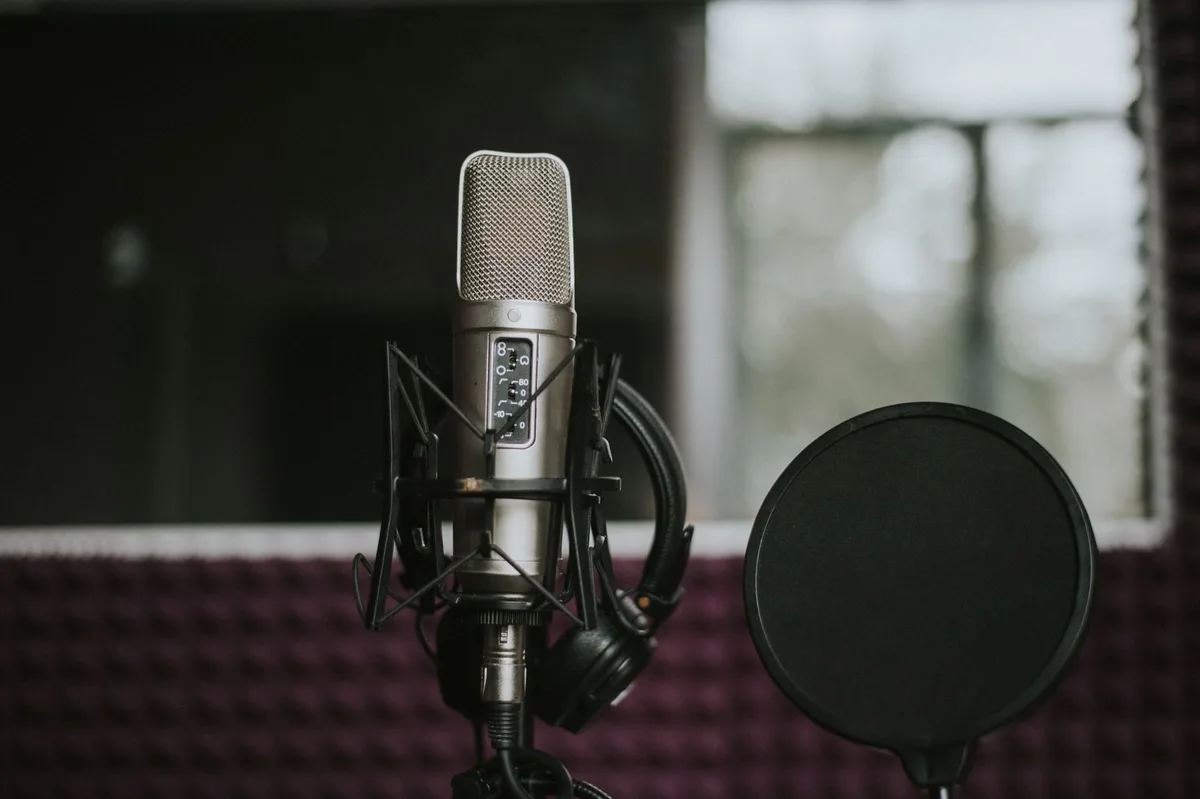
If you are recording your own voice, the room matters more than the microphone. A phone mic in a treated room beats a studio mic in a room full of hard, bare walls.
Hard surfaces bounce sound back into the mic, which is what makes amateur recordings sound hollow. Soft surfaces absorb it.

Set up like this:
- Record inside a closet full of clothes. The clothes work like free acoustic foam.
- Face away from windows and bare walls. Point the mic toward the softest surface in the room.
- Turn off anything that hums. Fans, AC units, and refrigerators in the next room all show up on a sensitive mic.
- Record a ten-second test line and play it back on headphones. If you hear an echo or room tone, add more soft material or move closer to it.
You do not need a dedicated microphone for your first videos. A phone held slightly off to the side of your mouth (to avoid popping on “p” and “b” sounds) is enough to start.
Step 4: Record Your Narration
With the script finalized and the room treated, record in short passes rather than one long take.
- Record one line at a time. If you fumble a line, stop, breathe, and read it again. Do not restart the whole script.
- Leave a beat of silence before and after each line. That silence gives you room to trim cleanly in the editor.
- Read with energy, even alone in a room. A flat read sounds flat on playback. Imagine explaining the line to one specific person.
- Record two or three takes of any line you are unsure about. Pick the best one later, when you are less precious about it.
- Export as a single audio file, or keep each line as a separate clip if your editor handles that better.
This is also the point where many first-time creators decide recording is not for them yet. That is a normal outcome, not a failure. Step 5 covers the alternative.
Step 5: Or Generate an AI Voice Instead
If you skipped Step 4, this is your narration step.
Paste your script into an AI voice tool, pick a voice, and generate the audio. The output quality now varies mostly by how much you are willing to pay per month, not by which platform you choose.
| Tool | Free tier | Best for | Commercial use on free plan |
|---|---|---|---|
| ElevenLabs | ~10,000 credits/month (~10 min audio) | Most natural-sounding voices | No, paid plans only |
| Murf | 10 minutes, no downloads | Studio-style editing alongside voice generation | No |
Try the free tiers directly at ElevenLabs or Murf before committing to a paid plan. The ElevenLabs review and Murf AI review break down pricing and voice quality for each in more depth. If you only want the free-tier comparison, the best AI voice generator guide ranks the no-cost options side by side.
Generate two or three voice options for the same script before picking one. The “best” AI voice is the one that fits your topic’s tone, not the most expensive tier.
Still deciding your first video’s format? The free Video 1 Plan Worksheet maps your topic into a script, a shot list, and an upload checklist, whether you end up recording or generating the voice. Free worksheet. No checkout.
Step 6: Clean Up and Level the Audio
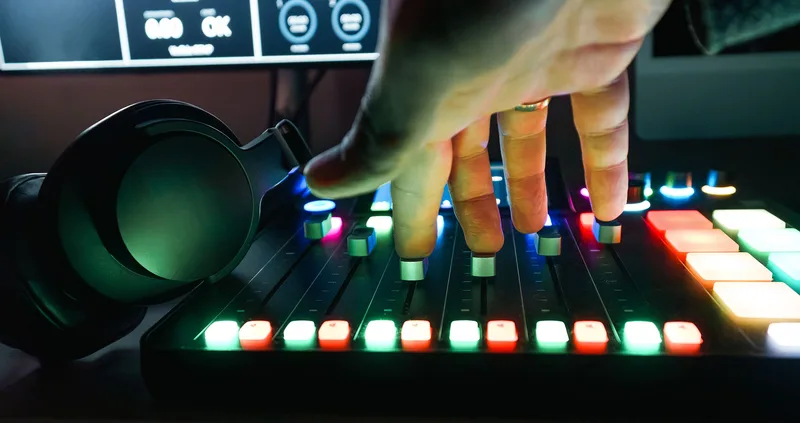
Raw narration, recorded or AI-generated, almost always needs a pass before it goes under footage.
- Trim dead air at the start and end of every line.
- Normalize the volume so quiet lines and loud lines sit at a consistent level. Most editors have a one-click normalize or auto-level tool.
- Cut filler sounds on recorded takes: breaths, mouth clicks, “um.”
- Check loudness against your music bed. The voice should stay clearly louder than any background music, not just audible over it.
- Listen on headphones, not speakers. Phone and laptop speakers hide hiss and uneven levels that headphones expose immediately.
- Export at a standard sample rate, usually 44.1kHz or 48kHz, so the audio stays in sync when you drop it into your video editor.
This pass takes ten to fifteen minutes once you know your editor’s tools. Skipping it is the single fastest way to make a video sound amateur, regardless of how good the room or the AI voice was.
Step 7: Know When AI Voice Needs a Disclosure Label
If you generated your narration instead of recording it, check the disclosure rules before you publish, because the scope is narrower than most creators assume.
Per YouTube’s disclosing use of GenAI content policy, disclosure is required for realistic AI content: making a real person appear to say or do something they did not, altering footage of a real event or place, generating a realistic scene that did not occur, or AI-generated music that is the main focus of the video. The policy explicitly lists voice or audio repair and cloning your own voice for narration as examples that do not require disclosure.
A generic stock AI voice reading a script over your own original footage, for a tutorial like this one, generally falls outside the realistic-content categories above. It is not impersonating a real person or depicting a real event. If your video does cross into one of the categories that require disclosure, the toggle lives in YouTube Studio’s upload flow, under “AI use” in the Attributes section.
When in doubt, check the current policy page yourself before publishing. YouTube updates its examples periodically, and the list in the policy is explicitly not exhaustive.
Step 8: Sync the Voiceover to Your Footage
Sync is where a voiceover video looks intentional instead of thrown together. The rule: the voice sets the timing, everything else follows it.
- Lay the finished narration track down first, before placing a single clip.
- Find the natural pauses between lines or ideas. Each pause is a cut point.
- Place one clip per line or beat, trimmed to end right at the next pause.
- Match the visual to the words. If the line says “inflation,” show a price tag or a chart, not an unrelated stock clip.
- Cut on the pause, never mid-word. A cut inside a spoken word reads as a glitch to the viewer.
Once the voice-first workflow clicks, a second video goes faster. The room, the tool choice, and the editing order are already decided.
Common Mistakes When Doing Voice Overs
1. Recording before the script is finished
Improvised narration is full of “so, basically, um.” Finish the script, read it aloud once, then record.
2. Picking an AI voice without testing it on headphones first
A voice that sounds fine through laptop speakers can sound robotic or mispronounce names on good headphones. Always preview on headphones before generating the full script.
3. Assuming every AI voice needs a disclosure label (or that none ever do)
YouTube’s GenAI policy scopes disclosure to realistic content: real people, real events, or AI-generated music as the main focus. A stock AI narrator over your own tutorial footage usually does not qualify, but check the current policy for the video you are making instead of guessing either way.
4. Recording in a room with bare walls
Echo is the single biggest giveaway of an amateur recording. Soft surfaces fix it for free; you do not need acoustic panels for your first videos.
5. Cutting footage to a music beat instead of the voice
When footage is cut to music, narration and visuals fight each other. Cut to the pauses in your voice track, and the music becomes background, not the driver.
Keep Reading
What to Do Next
You picked a model. Now ship video 1. Concrete sequence beats more research.
Get the Video 1 Plan Worksheet
6-section worksheet: idea, script outline, scenes, voice, thumbnail, upload day. 40 minutes of focused work and video one is recorded. Free PDF.
Free. No spam. Unsubscribe anytime.
Take the 2-min Quiz
Get matched to a model that fits your time, voice tone, and topic. Then use the bridge into a production kit.
Start the QuizComplete Channel Launch Pack
10 channel blueprints, setup assets, thumbnail prompts, and the starter plan in one bundle.
$9 $19 53% off Lowered for first-time creators.