In this article
CapCut is free, fast, and does almost everything. That is exactly why so many faceless creators outgrow it.
The free tier is genuinely useful until your channel needs something CapCut was not built for: transcript-based precision editing, automatic long-form-to-Shorts clipping, AI-generated scenes instead of stock-style b-roll, or a one-time software cost instead of a recurring subscription tied to a region-dependent credit system. CapCut is also owned by ByteDance, the same parent company as TikTok, which is enough reason on its own for some creators to look elsewhere.
Here are six alternatives that cover those production gaps, ranked by what each one actually replaces in a faceless workflow, not by feature count or marketing claims.
What to Look for in a CapCut Alternative
The right swap depends on which part of CapCut is not working for your channel.
If you narrate over footage and spend most of your editing time scrubbing a timeline to cut dead air, you need a transcript-based editor, not another timeline tool. If your channel is long-form and you are manually re-cutting Shorts from every episode, you need dedicated auto-clipping. If you want visuals that do not look like stock footage or a CapCut template, you need a tool built around AI scene generation rather than image-to-video effects. And if you are done paying a monthly fee for software at all, a one-time professional editor beats any subscription.
None of these tools are a straight drop-in replacement for CapCut’s full feature set. Each one wins at a specific job and loses at the rest, which is exactly why the comparison below ranks them by use case instead of by overall score.
The table below covers the six alternatives in this guide.
| Tool | Best For | Free Tier | Paid Starting Price |
|---|---|---|---|
| Descript | Transcript-based narration editing | Yes (limited transcription, watermarked) | $24/mo (Creator, billed annually) |
| Opus Clip | Auto-clipping long-form into Shorts | Yes (limited imports, watermarked) | ~$15/mo (Pro, billed annually) |
| VEED.io | Captions and short-form repurposing | Yes (watermarked) | ~$12/mo (billed annually) |
| InVideo AI | AI-generated scenes instead of stock b-roll | Yes (limited credits) | Credit-based, varies by plan |
| DaVinci Resolve | Free professional-grade editing, no subscription | Yes (full editor, no text-based editing) | $295 one-time (Studio) |
| Adobe Premiere Pro | Professional control inside the Adobe ecosystem | No (7-day trial) | $22.99/mo (single app, annual) |
Pricing per each vendor’s official pricing page, current as of October 2026. Verify before subscribing, rates and free-tier limits change.
1. Descript – Best for Transcript-Based Narration Editing
Descript transcribes every recording on import and lets you edit the video by editing the text. Delete a line from the transcript and the matching audio and video disappear from the timeline automatically. Our full Descript review covers the platform in depth.
For faceless creators: If your channel runs on narration over b-roll, this is the single biggest editing-time saver on this list. CapCut’s timeline still requires scrubbing to find and cut filler words and false starts. Descript’s Remove Filler Words feature scans the whole transcript in one pass. Pricing runs from a free plan through Creator at $24/month billed annually, per Descript’s pricing page.
Where it falls short: Descript is not built for footage-heavy, b-roll-assembly channels. If your videos are more visual montage than narration, you are still managing a timeline alongside the transcript, and CapCut’s media tools are stronger for that job.
Verdict: Switch here if narration editing speed, not AI generation, is your bottleneck.

2. Opus Clip – Best for Auto-Clipping Long-Form Into Shorts
Opus Clip takes a long-form video, a YouTube link, upload, or podcast recording, and automatically identifies and clips 10 to 20 short-form segments with animated captions and a virality score per clip. Our full Opus Clip review covers how the auto-clipping works.
For faceless creators: CapCut can turn one idea into multiple short clips, but you are still manually selecting and cutting each segment. Opus Clip automates the selection step, which matters most for channels publishing 4 to 8 long-form videos a month and distributing across TikTok, Reels, and Shorts without a dedicated editor. The free plan allows limited imports with watermarked exports; Pro starts at roughly $15/month billed annually, per Opus Clip’s pricing page.
Where it falls short: Opus Clip only repurposes footage you already have. It does not generate new visuals, write scripts, or handle the original edit, so you still need a primary editor for the long-form video itself.
Verdict: Pair this with your main editor when repurposing volume, not original editing, is the time sink.
3. VEED.io – Best for Captions and Short-Form Repurposing
VEED.io is a browser-based editor built around automated captions, subtitle styling, and AI text-to-speech. Our full VEED.io review covers the platform in depth.
For faceless creators: VEED’s animated captions, word-level styles like “pop,” “slide,” and “fade,” are more polished out of the box than CapCut’s caption presets, and the built-in screen recorder feeds straight into the timeline for tutorial and software-review channels. Pricing starts free with a watermark; paid plans run from roughly $12/month billed annually, per veed.io.
Where it falls short: VEED is not built for long-form b-roll assembly, and its text-to-speech ceiling sits below a dedicated voice tool. It is a captioning and short-form companion, not a full replacement for CapCut’s broader editing and generation toolkit.
Verdict: Choose VEED when caption quality and short-form polish are the bottleneck, not full production.

4. InVideo AI – Best for AI-Generated Scenes Instead of Stock B-Roll
InVideo AI runs AI agents that manage video production end to end, drawing on 200+ generative models, including Veo 3.1 and Kling 3.0, to generate actual video scenes rather than animating still images or matching stock clips. Our full InVideo AI review covers the agent workflow.
For faceless creators: CapCut’s image-to-video and text-to-video tools animate what you give them. InVideo generates the scene itself, which matters when your channel needs visuals that do not look templated or stock. The platform also stores project context, characters, visual style, and brand settings, across sessions, reducing setup time on a recurring series.
Where it falls short: InVideo AI uses credit-based pricing, so cost per video is not fixed and depends on which models a project uses. Check InVideo’s pricing page before committing a publishing schedule to it, and track credit use for a week before assuming a tier covers your volume.
Verdict: The right swap when your channel’s visual ceiling, not editing speed, is the limitation.
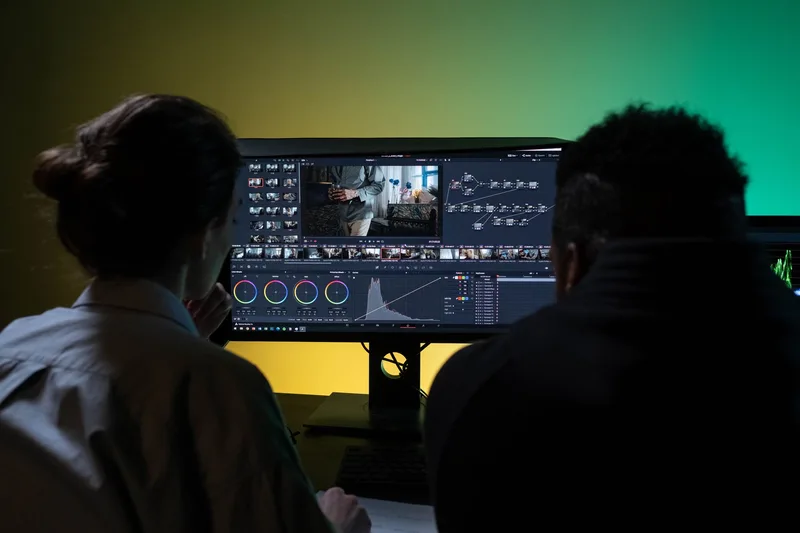
5. DaVinci Resolve – Best Free Professional-Grade Alternative
DaVinci Resolve is a full professional editing, color, and audio suite used across film and television production. The free version is genuinely complete: editing, color grading, and Fairlight audio tools with no time limit and no subscription.
For faceless creators: If the goal is dropping subscription software entirely, not switching to a different one, this is the only tool on this list with a real path to zero recurring cost. DaVinci Resolve Studio adds the AI Neural Engine and higher frame-rate support for $295 one time, not a subscription, per Blackmagic Design’s official product page.
Where it falls short: The learning curve is steeper than CapCut’s drag-and-drop simplicity. Resolve is built around a multi-page professional workflow (Cut, Edit, Fusion, Color, Fairlight, Deliver), and there is no AI scene generation or auto-captioning built in the way CapCut offers.
Verdict: Best for creators willing to trade a short learning curve for owning the tool outright.
6. Adobe Premiere Pro – Best for Professional Control in the Adobe Ecosystem
Adobe Premiere Pro includes a native text-based editing panel, transcribe footage, then select and reorder text to trim the matching video, alongside full professional color, audio, and motion graphics tools inside the wider Creative Cloud suite.
For faceless creators: If you already pay for Creative Cloud for thumbnails in Photoshop or motion graphics in After Effects, Premiere gives you editing depth CapCut does not reach, in the same ecosystem. Premiere Pro costs $22.99/month for individuals as a single app on an annual plan, billed monthly, per Adobe’s published pricing (verify the current rate directly on Adobe’s site before subscribing, as Creative Cloud pricing changes periodically).
Where it falls short: No free tier beyond a 7-day trial, no built-in AI avatar feature, and no bundled AI scene generation. The learning curve is real compared to CapCut’s templates and one-click exports.
Verdict: Worth it only if you are already in the Adobe ecosystem or need editing depth CapCut cannot provide. Not the right first purchase for a creator just starting out.
Choosing the rest of your faceless video stack? The free Tool Stack Calculator matches a lean setup to your budget, niche, and publishing pace. Free calculator and plan.
Which CapCut Alternative Fits Your Faceless Workflow?
The choice comes down to which part of CapCut is not working for you.
Narration editing is the time sink: Descript. Editing the transcript edits the video.
Long-form-to-Shorts repurposing is manual and slow: Opus Clip. Automates the clip selection step CapCut still makes you do by hand.
Captions and short-form polish matter most: VEED.io. Stronger caption styling than CapCut out of the box.
Your visuals look templated or stock: InVideo AI. Generates scenes instead of animating stills or matching clips.
You want to stop paying a monthly software bill: DaVinci Resolve. $295 once for Studio, no recurring cost.
You need professional depth inside an existing Adobe subscription: Premiere Pro. Text-based editing plus color, audio, and motion tools.
None of these fully replace CapCut’s specific combination of free editing, AI generation, and export, all in one tool. Most faceless creators end up pairing one of these with CapCut rather than dropping it outright, Opus Clip for repurposing, then CapCut for the original edit, for example. The best AI tools for faceless content creation guide covers how to combine tools by channel type.
Keep Reading
- CapCut AI Video Generator Review for Faceless Creators - what CapCut does well and where these alternatives fill the gaps
- Descript Review for Faceless YouTube Creators - a deeper look at the transcript-editing alternative ranked above
- Best AI Tools for Faceless Content Creation - the tested stack for scripts, voiceover, video assembly, and captioning
Frequently Asked Questions
Is there a free CapCut alternative with no watermark?
DaVinci Resolve’s free version is a complete professional editor with no watermark and no time limit, though text-based editing is a Studio-tier feature costing $295 one time. Descript, VEED.io, and Opus Clip all offer free tiers, but each adds a watermark to exports until you upgrade.
What is the closest tool to CapCut for AI-generated video scenes?
InVideo AI is the closest match for generation depth. It runs AI agents across 200+ models, including Veo 3.1 and Kling 3.0, to generate actual video scenes rather than animating still images the way CapCut’s image-to-video tool does.
Do any of these alternatives replace CapCut’s auto-clipping for Shorts?
Opus Clip is built specifically for this. It automatically identifies and clips 10 to 20 short-form segments from a long-form video with animated captions and a virality score per clip, a step CapCut requires you to do manually.
Which CapCut alternative is best for someone who records narration at home?
Descript. Its Remove Filler Words and Studio Sound features clean up consumer-microphone narration and let you edit by deleting text instead of scrubbing a timeline, which saves the most time on narration-heavy faceless channels.
Is CapCut being owned by ByteDance a real reason to switch?
It is a valid consideration if you are avoiding ByteDance-owned software for personal or client-facing reasons. None of the six alternatives above are ByteDance products, so switching fully resolves that concern if it is a dealbreaker for your channel or your clients.
What to Do Next
Don't pay for a stack you don't need yet. Start with the cheapest workable setup.
Get the Tool Stack Plan
3 tiers ($0, $30, $100), 12 tools, upgrade triggers per tier. Decide once, stop hopping. Free PDF.
Free. No spam. Unsubscribe anytime.
Browse the Tools Hub
Free YouTube tools: name generator, title generator, money calculator, thumbnail preview. No signup.
Open Tools HubComplete Channel Launch Pack
10 channel blueprints plus setup assets so you can spend less time choosing tools and more time shipping.
$9 $19 53% off Lowered for first-time creators.