In this article
Descript edits video like a document.
Delete a line from the transcript and the corresponding audio and video disappear from the timeline automatically. For faceless creators who narrate their content — explainers, tutorials, finance breakdowns, history channels — that changes how fast you finish a video.
This review covers what Descript actually does in production, where it fits in a faceless workflow, and where it falls short.
What Is Descript and How Does It Work?
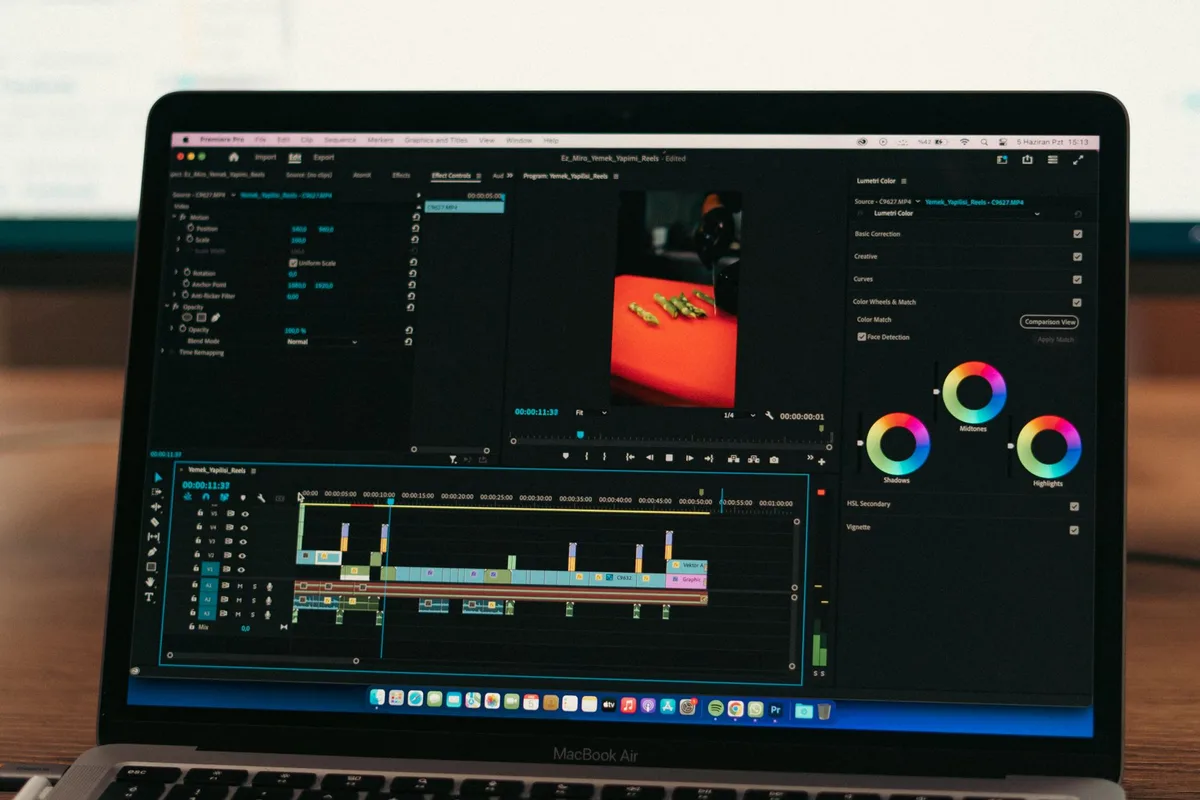
Descript is a video and audio editor built around automatic transcription. Every recording you import gets transcribed instantly, and you edit the video by editing the text. For faceless creators running narration-driven channels, this text-first workflow replaces traditional timeline scrubbing and typically cuts editing time on a 10-minute narration significantly compared to CapCut or Premiere.
Descript is available as a browser app and desktop app (Mac and Windows). The core loop is simple: import or record, get a transcript, edit the text, export. Supported formats include MP4, MP3, WAV, and most common audio and video files.
Beyond transcription, Descript includes a full set of AI tools designed to speed up production: Studio Sound for audio enhancement, Remove Filler Words for cleaning up natural speech, Captions for auto-generated subtitles, Underlord AI for automated scene design, and an Avatar feature for camera-free talking-head videos.
The platform is built for solo creators and small teams. Projects sync across devices. Collaboration features are available on higher-tier plans.
Pricing runs from a free plan (limited transcription, watermarked exports) through Creator at $24/month billed annually, to Business at $50/month billed annually, with Enterprise custom pricing for larger teams — per the Descript pricing page. Each paid plan caps monthly media hours: Creator includes 10 hours, Business includes 30 hours plus a bonus 5, according to the same page.
The sections below cover the features that matter most for faceless production workflows.
How Does Descript’s Text-Based Editing Work?
Descript transcribes every recording on import and lets you edit the video by editing the transcript text. Delete a word or sentence and the corresponding audio and video cut out automatically. This approach works fastest on narration-heavy channels where the script drives the video — tutorials, explainers, educational content, finance breakdowns — rather than footage-based channels that source and assemble B-roll clips.
Traditional video editors put you on a timeline. You drag the playhead, find the mistake, trim the clip handles. On a 10-minute narration with natural speech — false starts, mid-sentence corrections, off-script asides — that process involves dozens of individual cuts.
Descript inverts it. You read the transcript top to bottom, highlight the parts you want removed, and hit delete. The video follows. The same 10-minute narration gets cleaned up by reading through text rather than scrubbing audio waveforms.
The Remove Filler Words feature extends this. One click scans the entire transcript and highlights every “um,” “uh,” “like,” and “you know” in the recording. You can bulk-delete all of them or review each one before confirming. On a natural speech recording, this alone saves a substantial number of manual cuts per video — the exact number varies by speaker, but it addresses what is typically the most tedious part of narration editing.
Text-based editing also simplifies corrections. If a sentence needs rewording and you re-record that line, Descript’s Regenerate feature can clone your voice and resync the audio to new text you type — no re-recording session required. This is available on Creator and higher plans.
The limit: this workflow suits narration-first editing. If you build channel content by sourcing B-roll footage and assembling a visual story from clips, text-based editing offers less advantage. You would still manage footage on a timeline alongside the transcript.

What Does Studio Sound Do for Faceless Creator Audio?
Studio Sound is Descript’s AI audio enhancement filter. It removes background noise, normalizes volume, and sharpens voice recordings from consumer-grade microphones in one pass. For faceless creators recording voiceover in home offices or untreated rooms with USB microphones, it reduces the need for a separate audio processing tool — previously a separate software cost of around $20/month or more for dedicated apps.
Most faceless creators do not record in treated rooms. The standard setup is a USB condenser microphone in a home office, with ambient noise from air conditioning, traffic, keyboard clicks, and room reverb. Studio Sound addresses all of these.
The feature applies as a project setting or on import. You toggle it on; Descript reprocesses the audio. The output quality depends on the source recording — light room noise cleans up well. Heavy distortion or outdoor ambient noise improves but does not fully resolve. Under typical home-office recording conditions, Studio Sound produces results that are broadcast-ready for YouTube without additional post-processing.
For creators putting together their first production stack, this matters because it removes a separate tool dependency. Adobe Audition, iZotope RX, and comparable audio editors all cost extra. Descript bundles equivalent noise reduction into the subscription.
Descript also includes Eye Contact correction — an AI feature that adjusts eye direction in recorded footage to make it appear you were looking at the camera even if you were reading from a script. This is less relevant for purely faceless workflows where you never appear on camera, but useful for creators who occasionally record direct-to-camera content alongside faceless formats.
Not sure which tools belong in your faceless stack? The Faceless Tool Stack Calculator recommends tools based on your format, niche, and budget. Takes about 2 minutes.
What Is Descript’s Avatar Feature?
Descript Avatars generate a talking-head video from a text script without camera recording. You select or create a digital avatar, write or paste a script, and Descript renders a synchronized video where the avatar lip-syncs to AI-generated speech. For faceless creators who want a presenter-style video format without appearing on camera, this eliminates the need for camera recording entirely.
The Avatar feature sits inside Descript’s scene editor. You add a script, assign it to an avatar, and render. The result is a video of a digital face reading your script — lip-synced, with natural-looking facial movement.
Descript provides a gallery of pre-built avatars to choose from. On the Business plan at $50/month billed annually (per the Descript pricing page), you can also create a custom avatar from a photo upload — a digitized version of a real person’s face rendered synthetically, which means you could represent yourself without using live footage.
For faceless creators, the Avatar feature is most useful in two situations:
First, channels where a presenter format adds authority but you cannot or do not want to appear on camera. Finance, education, news analysis, and tutorial channels perform well with a talking-head format. An avatar provides that format without revealing your identity.
Second, testing whether a channel concept has legs before committing to a full production setup. You can produce several videos with avatars to validate the niche and audience response, then decide whether the channel justifies a more complex workflow.
The honest limitation: avatar video quality in 2026 still carries a synthetic look that most viewers recognize. This works better on channels where information drives retention — educational or data-focused content — than on entertainment or personality-driven formats where production authenticity matters.

Can Descript Replace a Full Video Production Stack?
Descript covers transcription, narration editing, audio enhancement, captions, basic scene assembly, and avatar generation. It does not replace dedicated B-roll editing, motion graphics, or AI text-to-video tools that auto-assemble footage from a script. For narration-first faceless channels, it handles most of the production loop at the Creator tier. Footage-heavy channels still need a second editor alongside it.
What Descript covers at Creator tier ($24/month annual):
- Recording or importing narration audio and video
- Transcript-based editing, filler word removal, voice regeneration
- Studio Sound audio enhancement
- Auto-captioning with styling options
- Scene assembly with Underlord AI layouts and transitions
- 1080p watermark-free export
- Up to 10 hours of media per month
What Descript does not cover:
- AI text-to-video generation from a script with auto-selected stock footage (that is InVideo AI’s primary function — see the InVideo AI review)
- Script-to-finished-video pipelines without any recording input (covered by Pictory AI)
- Motion graphics, visual effects, advanced color grading
- Traditional multicam or B-roll-heavy editing at a professional level
For a typical faceless tutorial or explainer format — narrated voiceover over screen recording, slide decks, or stock footage with captions — Descript handles the full production loop at the Creator tier. You do not need a second editor.
For compilation formats, documentary-style channels, or any workflow where you source and assemble raw footage clips, Descript covers the narration and audio side while you still need a second tool for footage assembly. The best AI tools for faceless content creation breakdown covers how to combine tools by channel type.
Descript Pros and Cons
Descript’s main advantages for faceless creators are text-based narration editing, integrated audio enhancement that replaces a separate audio tool, and an Avatar feature for camera-free talking-head videos. The main drawbacks are the media hours cap that limits high-volume production at lower tiers, and a workflow that does not suit B-roll-heavy channel formats.
Pros:
- Text-based editing reduces narration editing time. Reading and editing a transcript is faster than scrubbing a timeline for narration-heavy content. Remove Filler Words in particular eliminates a time-consuming manual process.
- Studio Sound is included at all paid tiers. Dedicated audio post-processing previously required a separate tool subscription. Descript bundles it.
- Avatar feature enables camera-free talking-head content. Faceless creators can produce a presenter-format video without appearing on camera at any paid tier.
- Underlord AI handles scene design automatically. Apply layouts, transitions, and B-roll prompts without manual assembly — relevant for creators who want to reduce time in the editing interface.
- Strong transcription accuracy. English narration transcribes reliably enough to use directly in editing without extensive correction.
Cons:
- Media hours cap limits high-volume production. The Creator plan’s 10-hour monthly limit constrains creators publishing 3-4 longer videos per week. At that volume, the Business plan ($50/month annual) becomes necessary.
- Not suited for footage-first workflows. B-roll-heavy channels and compilation formats still need a second editor. Descript works alongside CapCut or Premiere, not instead of them, for those formats.
- Custom avatars require the Business plan. Creating a personalized digital avatar from a photo is locked to the $50/month tier — an upgrade from the entry-level Creator plan.
- Avatar quality remains visibly synthetic. Descript’s avatar output is recognizable as AI-generated in 2026. It works for educational content; it is less effective for formats where production authenticity matters.
Verdict: Who Is Descript For?
Descript is the right editor for faceless creators who narrate their content — tutorials, explainers, finance, education, history — where a voiceover script drives the video. It is not the right primary tool for footage-based compilation channels, pure AI text-to-video workflows, or creators who need motion graphics and advanced visual effects.
If your production workflow is: write script → record narration → clean up audio → add captions → export, Descript handles every step at the Creator tier faster than any traditional timeline editor.
If your workflow is: find footage → assemble clips → add narration in post, Descript covers the narration side but you still need a second tool for the assembly. Many creators in this format use Descript for audio cleanup and captions, then a dedicated editor for the visual cut.
If you want fully AI-generated video from a script with no recording input, InVideo AI and Pictory AI are better primary tools. They handle the text-to-video pipeline end-to-end. Descript’s Avatar feature produces similar outputs but is slower to set up for high-volume production.
The Creator plan at $24/month billed annually is the practical starting point — the free tier’s transcription limit is too restrictive for regular production use. Upgrade to Business at $50/month if you need 4K export, more than 10 media hours per month, or a custom avatar.
Frequently Asked Questions
Common questions about Descript from faceless creators cover its free plan limits, Avatar feature capabilities, comparison to CapCut for editing workflow, media hours caps, and whether it handles a complete production pipeline.
Is Descript Free to Use?
Descript has a free plan that includes limited transcription (approximately 1 hour per month according to Descript’s documentation), basic editing features, and watermarked video exports. For watermark-free 1080p exports, higher transcription limits, and Studio Sound, the Creator plan starts at $24/month billed annually per the Descript pricing page.
Does Descript Work for Faceless YouTube Channels Without Recording Yourself?
Yes, through two paths. The Avatar feature generates talking-head videos from a script without camera recording. Alternatively, you can use Descript purely for voiceover narration over screen recordings, slides, or stock footage without ever appearing on camera. Both workflows run without a camera at any paid tier.
What Is Descript’s Underlord AI?
Underlord is Descript’s AI editing assistant. It applies professionally designed scene layouts and transitions automatically, generates B-roll from text prompts (Business tier), writes or refines scripts on request, and creates short clips from longer recordings for social distribution. Available on Creator and higher plans.
How Does Descript Compare to CapCut for Faceless Creators?
Descript outperforms CapCut for voiceover-narrated content because its transcript editing, filler word removal, and audio enhancement tools are stronger. CapCut handles footage-based content better — B-roll assembly, effects, short-form video templates, and social-specific formatting. Many faceless creators use both: Descript for narration editing and audio cleanup, CapCut for visual assembly and platform optimization.
What Counts as a Descript Media Hour?
Media hours measure transcription processing time — how much audio and video you run through Descript’s transcription engine. The Creator plan includes 10 hours per month. A 10-minute video uses roughly 10 minutes of media hours. Hours reset monthly and do not carry over between billing periods, per Descript’s plan documentation.
Keep Reading
What to Do Next
Don't pay for a stack you don't need yet. Start with the cheapest workable setup.
Get the Tool Stack Plan
3 tiers ($0, $30, $100), 12 tools, upgrade triggers per tier. Decide once, stop hopping. Free PDF.
Free. No spam. Unsubscribe anytime.
Browse the Tools Hub
Free YouTube tools: name generator, title generator, money calculator, thumbnail preview. No signup.
Open Tools HubComplete Channel Launch Pack
10 channel blueprints plus setup assets so you can spend less time choosing tools and more time shipping.
$9 $19 53% off Lowered for first-time creators.